Appointments
View and manage all your appointments in a detailed list format. The Appointments page provides a comprehensive view of bookings with full details and actions.
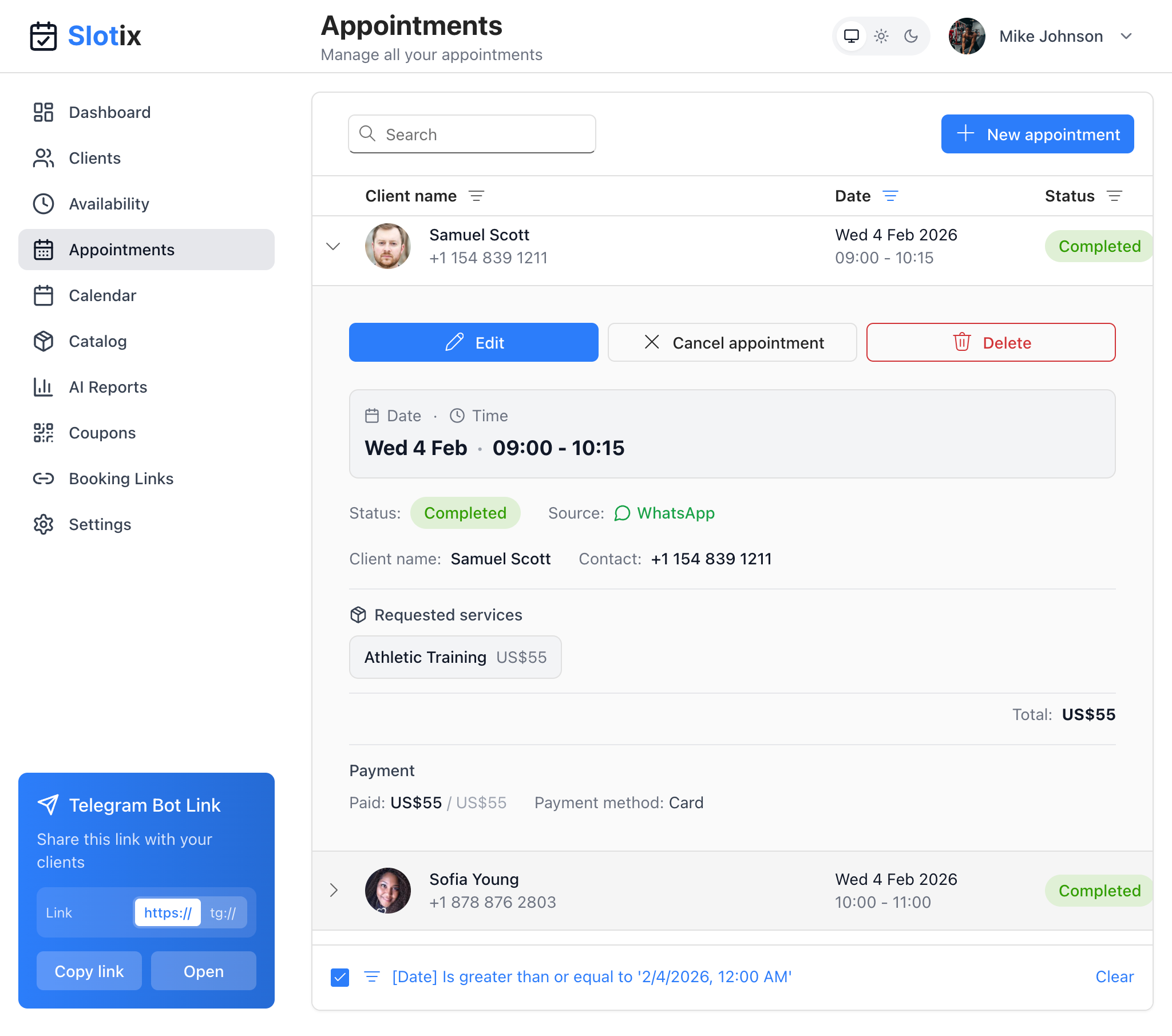
Appointments List
Accessing Appointments
Click Appointments in the sidebar to view your appointment list.
Appointments List
The page displays appointments as expandable cards showing:
- Client name with profile photo
- Phone number
- Date and time
- Status badge (Pending, Confirmed, Completed, Cancelled)
Click on any appointment to expand and see full details.
Appointment Details
When expanded, an appointment shows:
Date & Time
- Full date (e.g., Wed 4 Feb)
- Time slot (e.g., 09:00 - 10:15)
Status & Source
- Status - Current status with color badge (e.g., Completed)
- Source - Where the booking came from (Telegram, WhatsApp, Web/Manual)
Client Information
- Client name
- Contact phone number
Requested Services
- List of services booked for this appointment
- Individual prices for each service
- Total amount
Payment Information
- Paid - Amount paid vs total amount
- Payment method - How the client paid (Card, Cash, etc.)
Managing Appointments
Actions
Each expanded appointment has action buttons:
- Edit (blue) - Modify appointment details
- Cancel appointment - Cancel the booking
- Delete (red) - Permanently remove the appointment
Create New Appointment
Click + New appointment button to manually create a booking:
- Select a client
- Choose date and time
- Add services
- Save the appointment
Search Appointments
Use the Search bar to find specific appointments by client name or details.
Filter Appointments
Use the filter bar at the bottom to narrow down results:
- Filter by date range (e.g., “Date is greater than or equal to…”)
- Filter by status
- Click Clear to remove filters
Status Management
Update appointment status as you complete services:
- Expand the appointment
- Click Edit
- Change the status
- Save
Common status workflow:
- Pending → Confirmed (client confirms)
- Confirmed → Completed (service delivered)
- Pending/Confirmed → Cancelled (appointment cancelled)
- Confirmed → No-show (client didn’t arrive)
Payment Tracking
Track payments directly from the appointment:
- Expand the appointment
- View the Payment section
- Record payment amount and method when client pays
Tips for Managing Appointments
- Update status promptly - Keep accurate records
- Record payments immediately - Don’t forget to log payments
- Use filters - Find appointments quickly
- Check daily - Review upcoming appointments each morning
- Handle cancellations - Cancel in the app so the slot reopens
Last updated on