Client Management
Build lasting relationships with comprehensive client profiles that track history, preferences, and engagement.
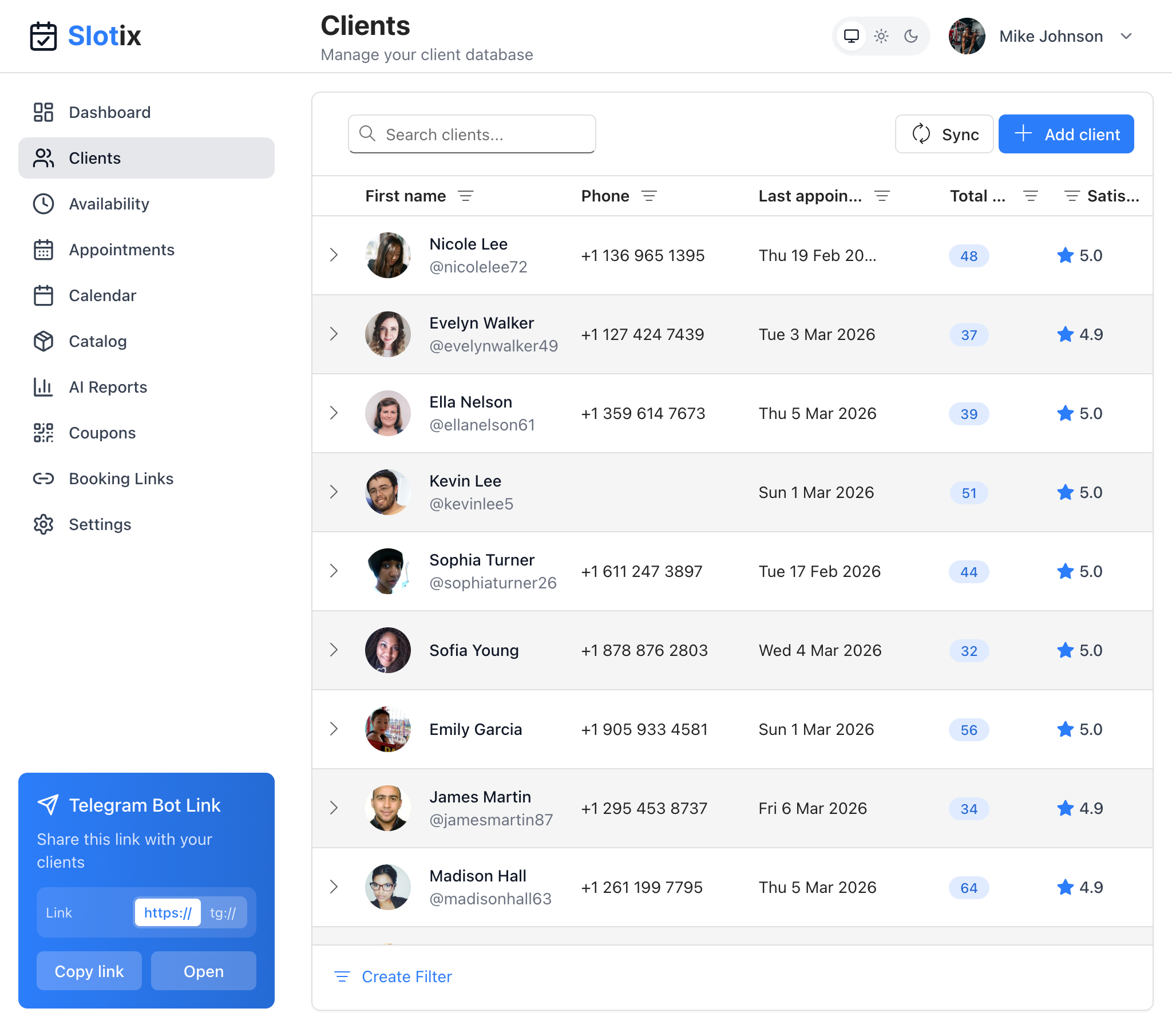
Clients List
Client List Overview
The Clients page displays all your clients in a sortable table with key information at a glance:
| Column | Description |
|---|---|
| First name | Client’s name with profile photo and username |
| Phone | Contact phone number |
| Last appointment | Date of most recent appointment |
| Total | Total amount spent |
| Satisfaction | Average rating (out of 5 stars) |
Use the Search clients bar to quickly find specific clients, or click Create Filter for advanced filtering options.
Client Profiles
Automatic Creation
Client profiles are created automatically from:
- First booking via any channel (Telegram, WhatsApp, booking page)
- Manual creation using the + Add client button
- Sync from external sources using the Sync button
Profile Information
Each client profile contains:
- Name - Client’s full name
- Username - Social media handle (e.g., @nicolelee72)
- Contact - Phone, email, Telegram, WhatsApp
- Profile Photo - Automatically fetched or manually uploaded
- Appointment History - All past and upcoming appointments
- Total Spending - Cumulative amount spent
- Satisfaction Rating - Average feedback score
- Notes - Your private notes about the client
- VIP Status - Whether client is marked as VIP
- Coupons - Active and used loyalty coupons
Managing Clients
View All Clients
Go to Clients from the sidebar to see your client list:
- Search by name, username, or contact
- Sort by any column (click column header)
- Filter by VIP status or other criteria
- Click any client row to expand details
Add a New Client
- Click the + Add client button
- Enter client information
- Save the new profile
Edit Client
- Click on a client row to expand
- Update their information
- Add or modify notes
- Save changes
Mark as VIP
- Open client profile
- Toggle VIP Status on
- Client gains access to VIP exclusive slots
Block a Client
For problematic clients:
- Open client profile
- Click Block
- Client cannot make new bookings
Client Notes
Use notes to remember important details:
- Preferences (e.g., “prefers morning appointments”)
- Allergies or sensitivities
- Communication preferences
- Personal details for relationship building
- Special requests
Notes are private and only visible to you.
Client History
Appointment History
See all appointments for a client:
- Date and time
- Service provided
- Status (completed, cancelled, no-show)
- Payment status
- Notes from each appointment
Spending Analysis
Track client value:
- Total spending over time
- Average per visit
- Most booked services
- Spending trend
Tips for Client Management
- Add notes after appointments - Capture details while fresh
- Review before appointments - Refresh your memory
- Recognize VIPs - Use data to identify valuable clients
- Track preferences - Personalize the experience
- Clean up regularly - Remove outdated information
Last updated on