Telegram Bot Integration
Accept bookings through an AI-powered Telegram bot that’s available 24/7.
Telegram Settings
Features
- AI-powered conversations - Natural language booking experience
- 24/7 availability - Clients can book anytime
- Automatic reminders - Send appointment reminders via Telegram
- Instant notifications - Get notified of new bookings
- Multi-language - Bot speaks your client’s language
Setup
Step 1: Create Your Bot
- Open Telegram and search for @BotFather
- Send
/newbotcommand - Choose a name for your bot (e.g., “YourBusiness Booking”)
- Choose a username (must end in “bot”, e.g., “yourbusiness_bot”)
- BotFather will give you a bot token - save this!
Step 2: Connect to Slotix
- Go to Settings from the sidebar
- Select the Telegram tab
- Scroll to Configure Telegram Bot section
- Paste your bot token in the Bot Token field
- Click Save settings
How to create a Telegram Bot in BotFather
Step 3: Enable the Bot
- Toggle Enable Telegram Bot on at the top of the page
- Slotix will verify the connection
- When successful, you’ll see a green Bot configured badge showing “Active”
Step 4: Test Connection
Click the Test connection button to verify your bot is properly connected.
Bot Status
Once configured, you’ll see:
- Bot configured badge with your bot’s username (e.g., @FitProStudioBot)
- Active status indicator
- Test connection button to verify the setup
Sharing Your Bot
Link for Clients
Your personalized bot link is displayed in the Link for clients section:
https://t.me/YourBotUsername?start=book_6Use the Copy button to copy this link, or click the QR code button to generate a scannable code.
Where to Share
Share your bot link:
- On your website
- In social media profiles
- On business cards
- In email signatures
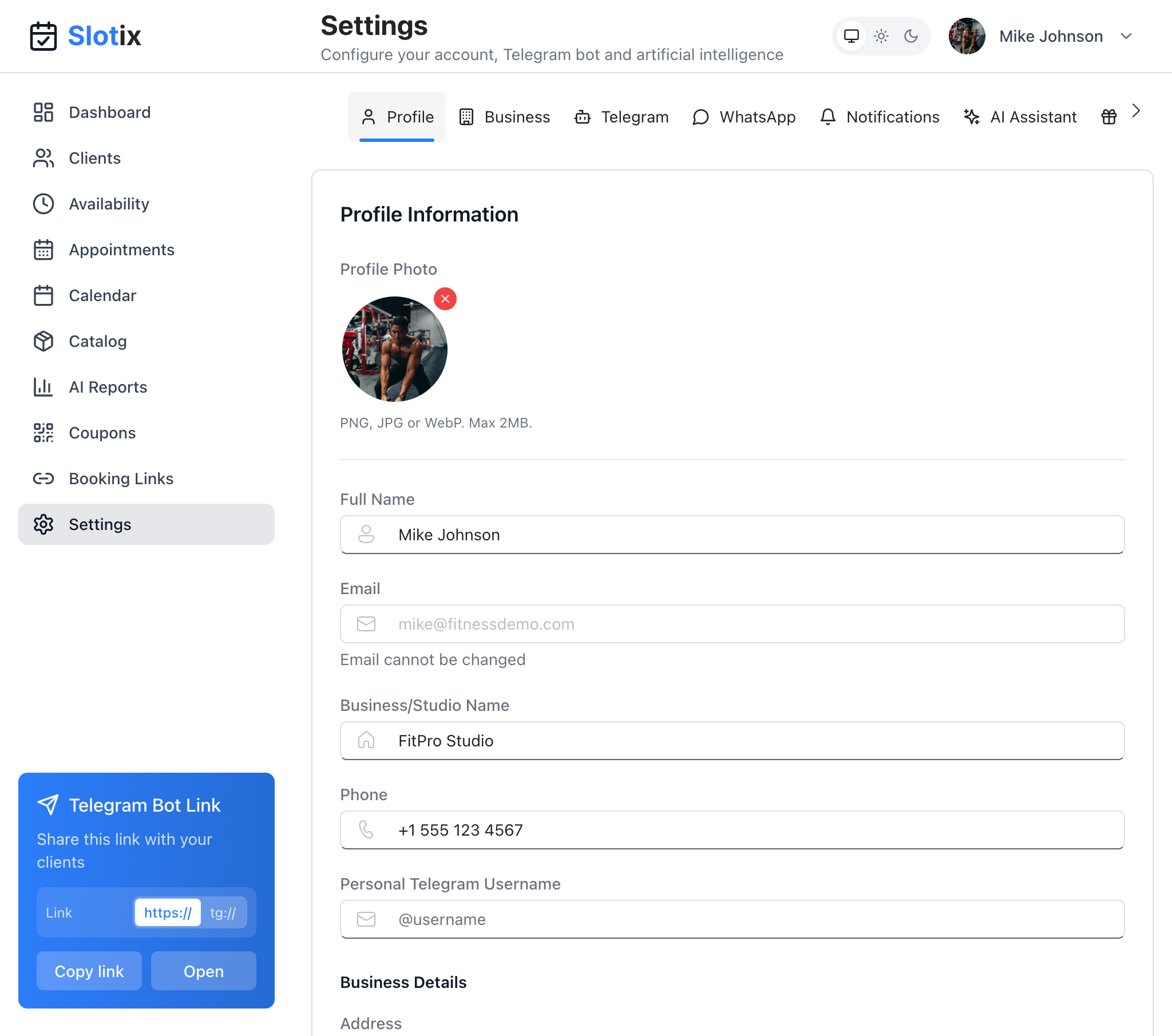
- Via the Telegram Bot Link widget (visible on all pages)
Telegram Bot Link Widget
A convenient widget appears at the bottom-left of every page showing:
- Your bot link URL
- Copy link button
- Open button to test the bot
This makes it easy to share your bot link at any time.
How It Works
Client Experience
- Client clicks your bot link or finds your bot on Telegram
- Bot greets them with your custom welcome message
- Client can ask questions or request to book
- Bot shows available times and services
- Booking is confirmed instantly
Booking an appointment with Telegram Bot
Your Experience
- Receive notification when someone books
- See the appointment in your calendar
- Client details are automatically saved
- Reminders are scheduled automatically
Troubleshooting
Bot Not Responding
- Check that the bot token is correct
- Click Test connection to verify
- Ensure the Enable Telegram Bot toggle is on
- Verify you haven’t revoked the bot token in BotFather
Wrong Responses
- Review your AI personality settings in the AI Assistant tab
- Check your service catalog is complete
- Ensure availability is properly configured
Clients Can’t Find Bot
- Verify the bot username is correct
- Make sure the bot is not stopped or deleted in BotFather
- Share the direct link from the Link for clients section
Last updated on