Service Catalog
Manage all your services and products in one place. The catalog powers your booking system by defining what clients can book.
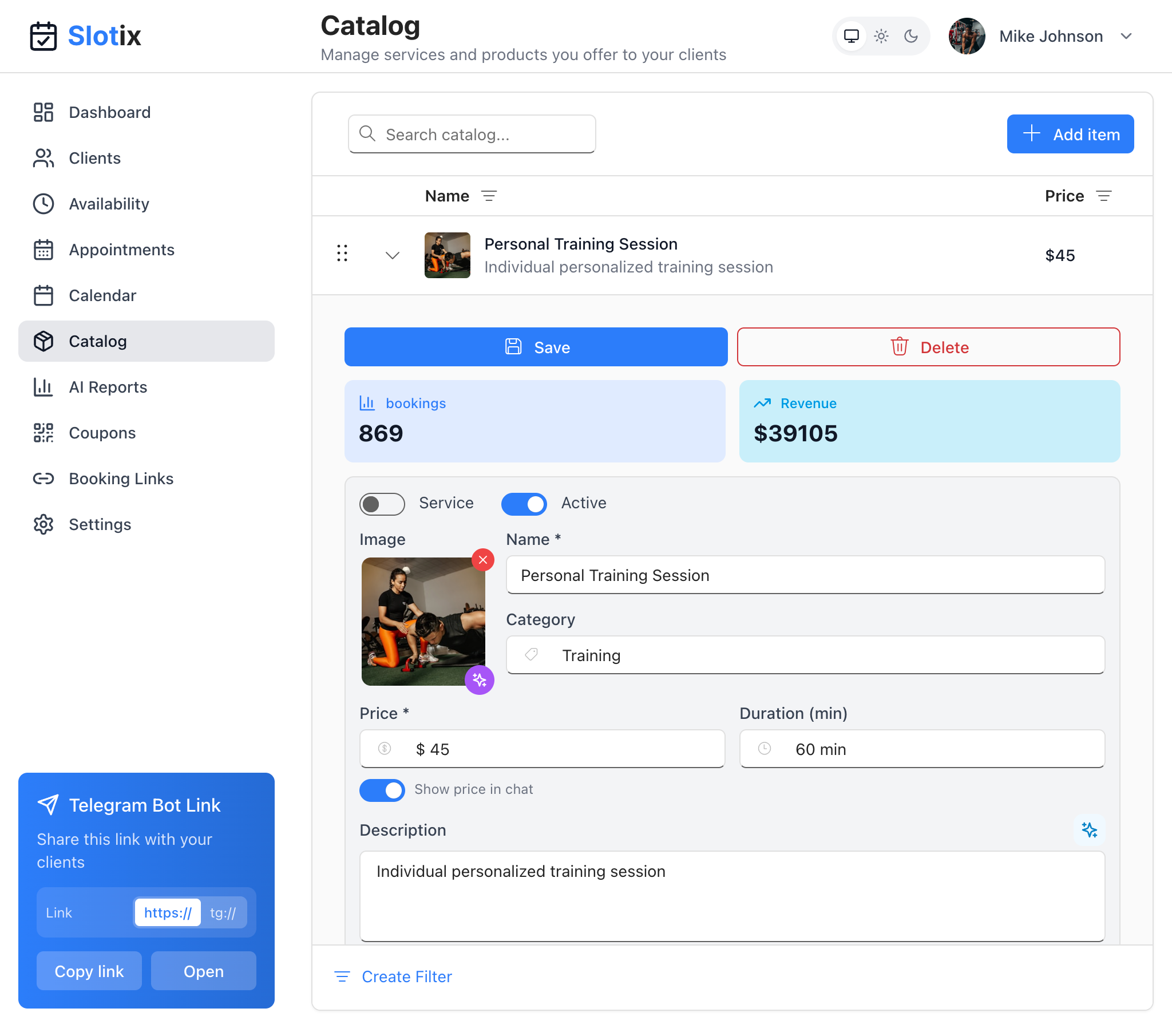
Service Catalog
Accessing the Catalog
Click Catalog in the sidebar to view and manage your services and products.
Catalog Overview
The catalog displays your services in a list with:
- Name - Service name with thumbnail image
- Price - Service price
Click on any service to expand its details and edit it.
Service Details
When you expand a service, you’ll see comprehensive information and statistics:
Performance Metrics
- Bookings - Total number of times this service has been booked
- Revenue - Total revenue generated by this service
Service Configuration
| Field | Description |
|---|---|
| Image | Upload a photo representing the service |
| Service/Product Toggle | Switch between service (bookable) and product (purchasable item) |
| Active Toggle | Enable or disable the service for booking |
| Name | Service name as shown to clients |
| Category | Group services by category (e.g., Training, Consultation) |
| Price | Service price in your currency |
| Duration (min) | How long the service takes in minutes |
| Show price in chat | Toggle to display price in chatbot conversations |
| Description | Detailed description shown to clients |
Managing Services
Add a New Service
- Click the + Add item button
- Fill in the service details
- Upload an image (optional but recommended)
- Set the price and duration
- Click Save
Edit a Service
- Click on the service row to expand
- Modify any field
- Click Save to apply changes
Delete a Service
- Expand the service details
- Click the red Delete button
- Confirm deletion
Activate/Deactivate Services
Use the Active toggle to temporarily hide a service from clients without deleting it. Inactive services:
- Don’t appear in the booking flow
- Don’t show in the chatbot
- Keep their history and statistics
Services vs Products
Services
- Can be booked as appointments
- Have a duration
- Occupy time slots in your calendar
Products
- Can be sold alongside services
- Don’t occupy time slots
- Useful for retail items, add-ons, or packages
Toggle between Service and Product using the switch in the detail view.
Categories
Organize your catalog with categories:
- Group related services together
- Help clients find what they need
- Keep your catalog organized
Select a category from the dropdown or create new ones as needed.
Service Images
Add appealing images to your services:
- Click on the image placeholder
- Upload a photo
- Recommended: Use high-quality, representative images
Good images help clients understand what they’re booking and make your catalog more professional.
Filtering Services
Use Create Filter at the bottom of the page to filter services by:
- Category
- Active/Inactive status
- Price range
- And more
Tips for a Great Catalog
- Use clear names - Make services easy to understand
- Add descriptions - Explain what clients get
- Upload images - Visual appeal increases bookings
- Set accurate durations - Prevents scheduling conflicts
- Keep prices updated - Ensure accuracy
- Organize by category - Help clients navigate