Settings
Configure your Slotix account to match your business needs.
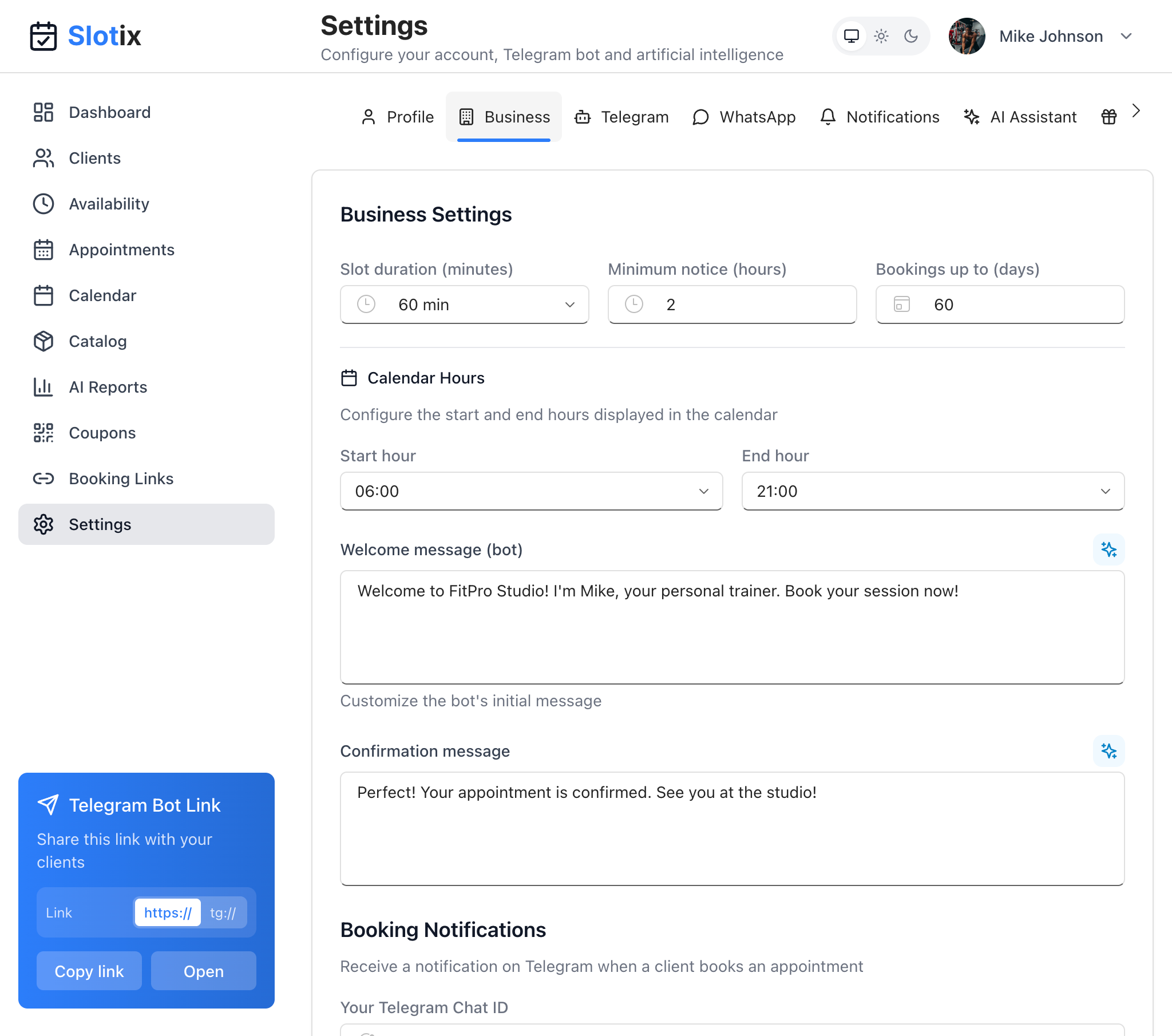
Settings - Business Tab
Accessing Settings
Click Settings in the sidebar to open the settings page. Settings are organized into tabs at the top of the page.
Settings Tabs
Profile
Manage your personal and business profile:
- Profile photo (PNG, JPG, WebP, max 2MB)
- Full name and email
- Business/Studio name
- Phone number
- Personal Telegram username
- Business address
Learn more about Profile Settings
Business
Configure booking and calendar settings:
- Slot duration - Default appointment length in minutes
- Minimum notice - Hours of advance notice required for bookings
- Bookings up to - How many days in advance clients can book
- Calendar hours - Start and end times displayed on calendar
- Welcome message - Bot’s greeting message (with AI suggestions)
- Confirmation message - Message sent after booking
- Booking notifications - Your Telegram Chat ID for alerts
Telegram
Set up your Telegram booking bot:
- Enable/disable the Telegram bot
- Bot configuration status and connection test
- Client booking link with copy and QR code
- Bot token configuration
Learn more about Telegram Integration
Configure WhatsApp integration:
- Enable/disable WhatsApp messaging
- Business API settings
- Message templates
Learn more about WhatsApp Integration
Notifications
Configure how you receive updates:
- Email notifications
- Push notifications
- Reminder settings
- New booking alerts
Learn more about Notification Settings
AI Assistant
Customize your AI chatbot’s personality:
- Business type templates (category and profession)
- Custom prompt editor with preview
- AI-powered prompt suggestions
Coupons
Configure the loyalty coupon system:
- Enable/disable loyalty coupons
- Spending threshold for earning coupons
- Discount type (fixed amount or percentage)
- Discount value
- Validity period in days
Learn more about Loyalty Coupons
API & MCP
Advanced integration settings:
- API access configuration
- MCP (Model Context Protocol) settings
- Developer options
Language
Localization preferences:
- Interface language
- Currency settings
- Timezone configuration
Quick Access
Access settings from any page by clicking Settings in the sidebar. Use the tab navigation to quickly jump to the section you need.