Calendar Management
The calendar is your command center for managing all appointments. It provides a visual overview of your schedule and tools for efficient appointment handling.
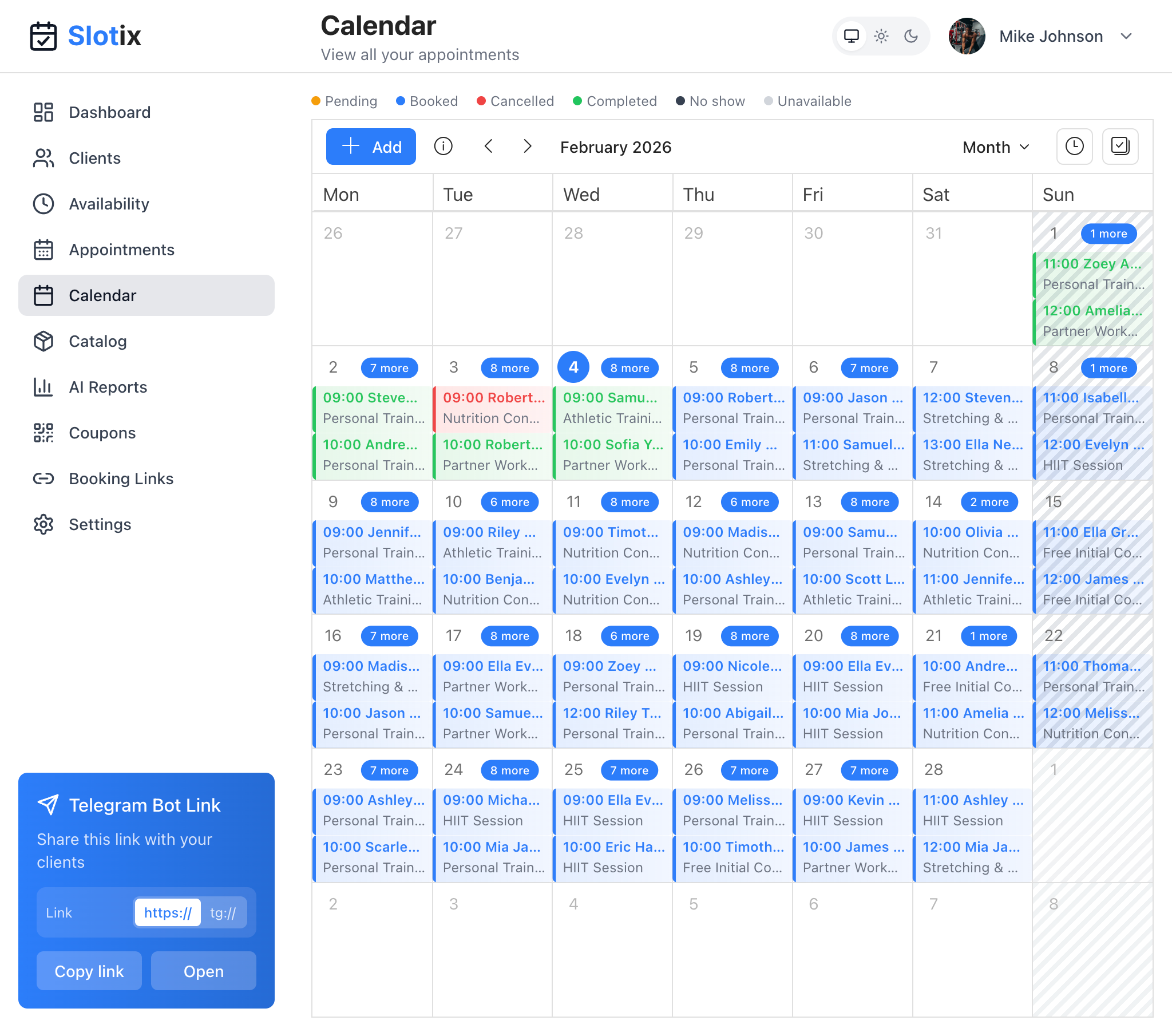
Calendar Month View
Calendar Views
Use the view selector in the top-right corner to switch between Day, Week, and Month views.
Month View
High-level monthly overview showing all your appointments at a glance:
- Color-coded appointments by status (Pending, Booked, Cancelled, Completed, No-show, Unavailable)
- Quick scan of busy days across the entire month
- Click any day to see detailed appointments
- Navigate between months using the arrow buttons
- Great for long-term planning and identifying busy periods
Day View
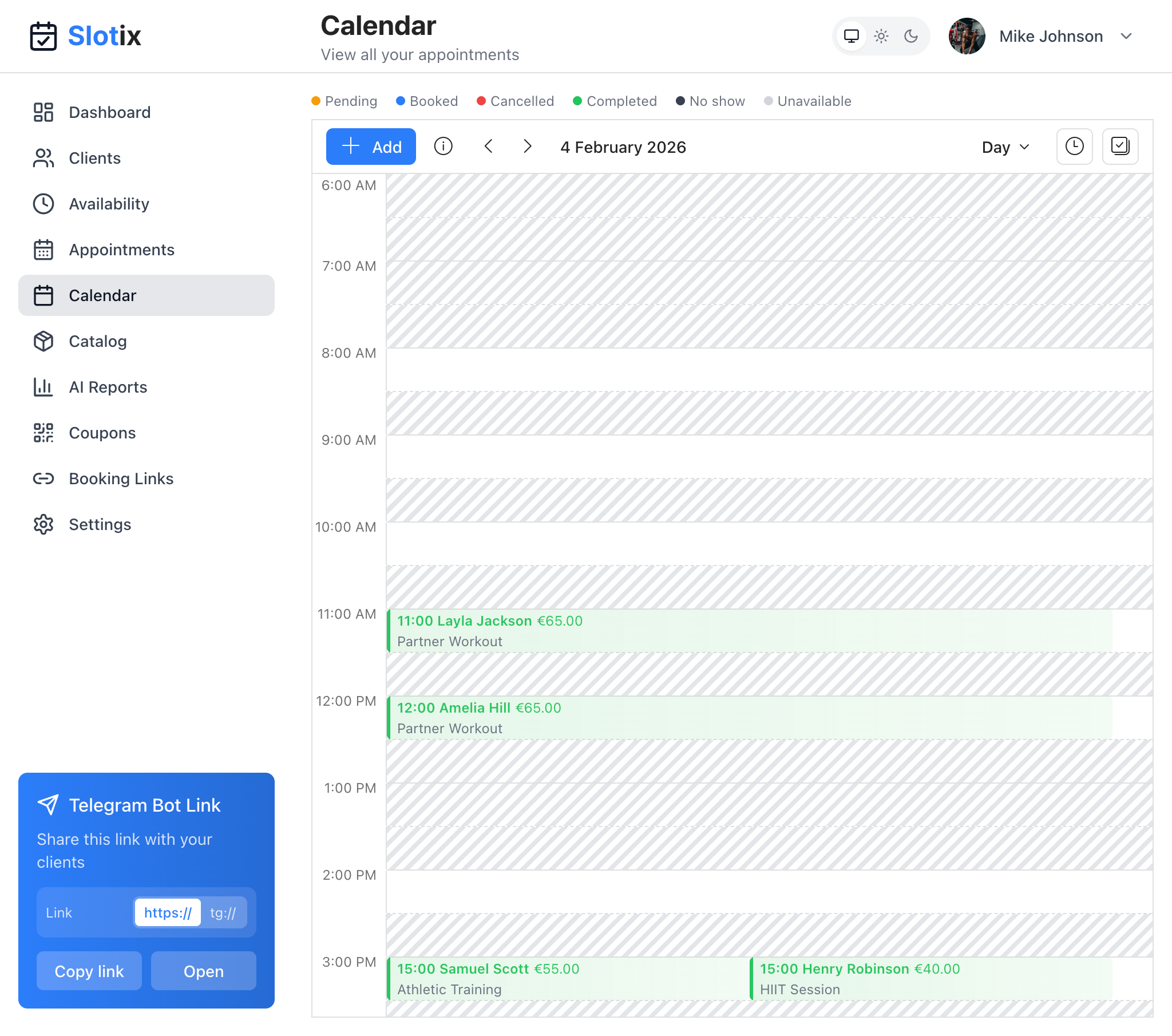
Calendar Day View
See all appointments for a single day in a detailed timeline:
- Hour-by-hour timeline from your configured start hour to end hour
- Each appointment shows client name, service, and price
- Completed appointments are highlighted in green
- Easy navigation between days using arrow buttons
- Perfect for managing your daily schedule
Week View
Overview of your entire week:
- See busy and free periods at a glance
- Compare days side by side
- Ideal for weekly planning
Status Legend
The calendar header displays a color legend for appointment statuses:
| Status | Color | Description |
|---|---|---|
| Pending | Yellow/Orange | Awaiting confirmation |
| Booked | Blue | Confirmed appointment |
| Cancelled | Red | Appointment cancelled |
| Completed | Green | Service delivered |
| No-show | Grey | Client didn’t arrive |
| Unavailable | Striped | Blocked time slot |
Managing Appointments
Create an Appointment
- Click the + Add button in the calendar header
- Select a client (or create new)
- Choose a service from your catalog
- Select date and time
- Add optional notes
- Save the appointment
Edit an Appointment
- Click on the appointment in the calendar
- Modify details as needed
- Save changes
Move an Appointment (Drag & Drop)
- Click and hold on an appointment
- Drag to a new time slot
- Release to confirm
Cancel an Appointment
- Open the appointment
- Click Cancel appointment
- Optionally send cancellation notification to client
Payment Tracking
Track payments per appointment:
- Open the appointment
- View the Payment section showing paid amount and payment method
- Record payment amount and method
- Mark as paid/unpaid
Payment methods supported: Cash, Card, Bank transfer, and other custom methods.
Real-Time Updates
Your calendar syncs in real-time:
- New bookings appear instantly
- Changes sync across all devices
- No refresh needed
When a client books via Telegram or your booking page, the appointment immediately appears on your calendar.
Tips for Effective Calendar Use
- Check daily - Start each day reviewing your schedule
- Update status promptly - Mark appointments as complete when done
- Use notes - Add relevant client information
- Track payments - Keep financial records up to date
- Review weekly - Plan ahead for the coming week