Availability Settings
Control when clients can book appointments with you.
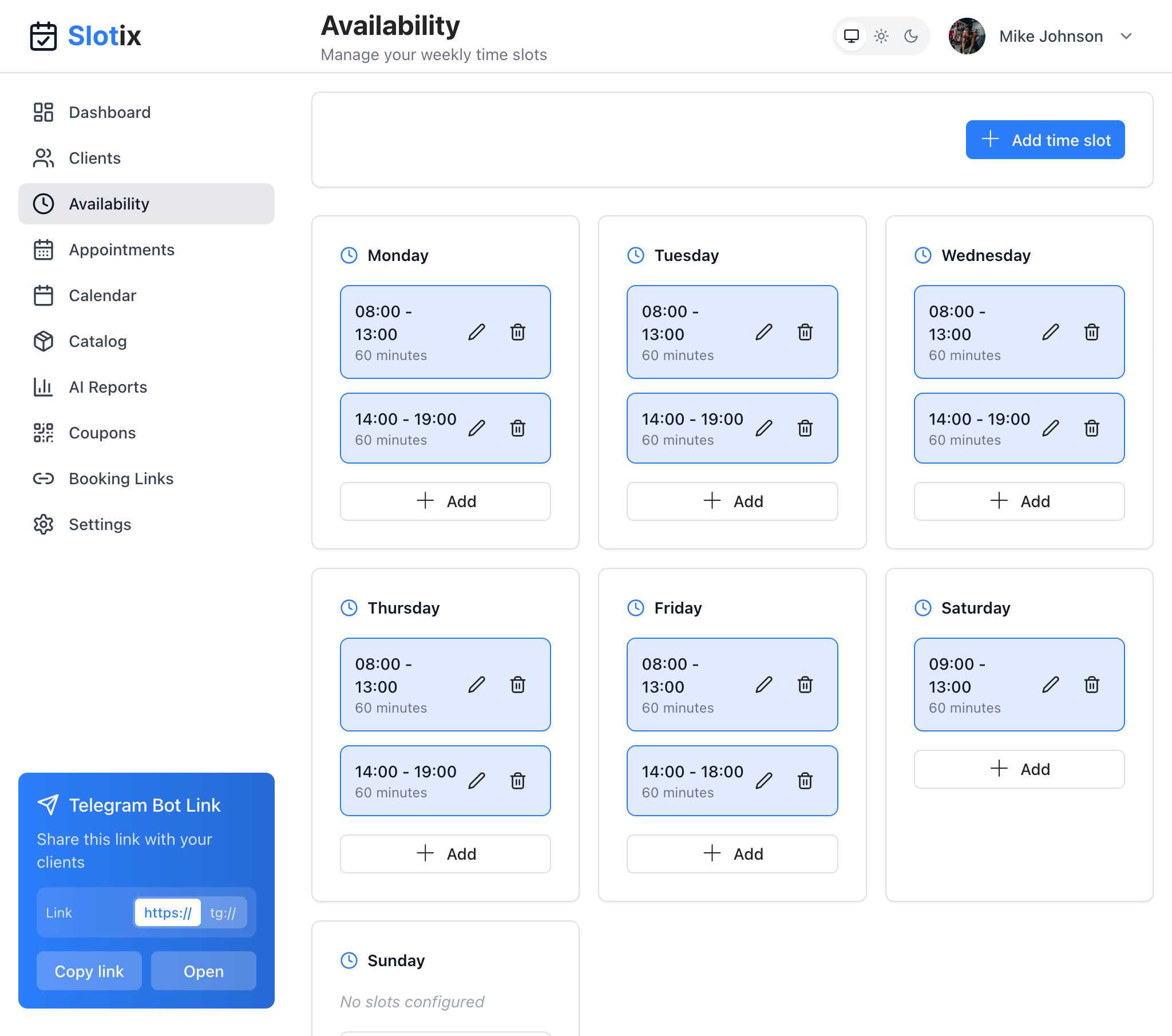
Availability Settings
Accessing Availability
Click Availability in the sidebar to manage your weekly time slots.
Weekly Schedule
The Availability page displays your working hours organized by day of the week. Each day shows:
- Time slot cards with start and end times (e.g., 08:00 - 13:00)
- Slot duration in minutes (e.g., 60 minutes)
- Edit and delete icons for each slot
- + Add button to create new slots for that day
Setting Hours
- Navigate to Availability from the sidebar
- For each day, view your existing time slots
- Click + Add to create a new time slot
- Set the start time, end time, and slot duration
- Save the slot
Multiple Time Blocks
For split schedules (e.g., with lunch break), add multiple time blocks per day:
- Morning: 08:00 - 13:00 (60 minutes slots)
- Afternoon: 14:00 - 19:00 (60 minutes slots)
This creates a break in between where clients cannot book.
Adding a New Time Slot
- Click the + Add time slot button at the top, or
- Click + Add under a specific day
- Configure the slot settings
- Save
Editing a Time Slot
- Click the edit icon (pencil) on any time slot card
- Modify the start time, end time, or duration
- Save changes
Deleting a Time Slot
- Click the delete icon (trash) on any time slot card
- Confirm deletion
Days Without Slots
Days with no configured slots (like Sunday in the example) show “No slots configured”. Clients cannot book on these days.
Availability Exceptions
Override your regular schedule for specific dates.
Types of Exceptions
- Day off - No appointments on this date
- Custom hours - Different hours than normal
- Extended hours - Work longer than usual
Adding Exceptions
- Go to Availability > Exceptions
- Click Add Exception
- Select date and configure
VIP-Only Slots
Reserve special times for VIP clients only.
See VIP Exclusive Slots for details.
Tips
- Be realistic with your availability
- Include buffer time between appointments by adjusting slot duration
- Keep exceptions updated for holidays and vacations
- Review settings periodically to optimize your schedule
Last updated on